
Client area
HeliShift Client Guide
Your HeliShift account brings together everything you need: booking an island-to-island flight, paying for it, registering your passengers and finding your tickets. Your flights are operated by France Copter on an Airbus H125. This guide answers the most common questions, screen by screen.
1. Booking a flight
How do I choose my destination and my date?
- Go to the booking page. The "Where would you like to fly?" screen opens straight away.
- Under "Trip type", pick "One way" or "Round trip".
- Fill in the "From" and then the "To" field. You can also start from one of the cards in the "Popular routes" block.
- Pick your date. That day's departures appear immediately in the right-hand panel, under "Scheduled takeoff".
- Tap the time you want: it switches to "Selected".
- Click "Continue" at the bottom of the page.
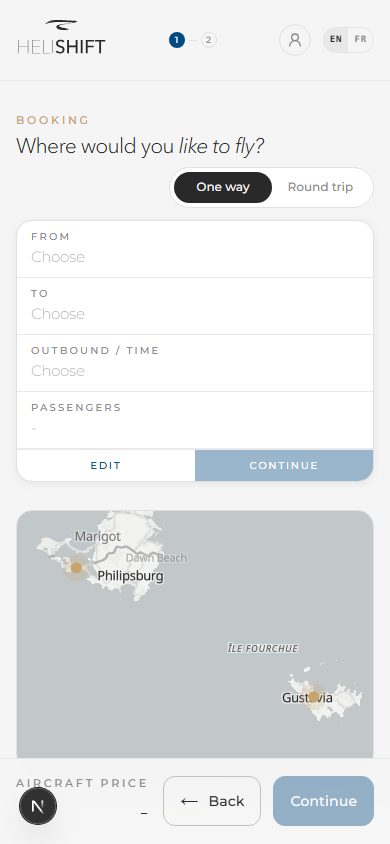
If the screen shows "No routes available", no flight is published for the moment: come back a little later. The "Route list temporarily unavailable - showing reference schedule." banner means something else entirely: it flags a fallback display of the route list.
How do I add passengers?
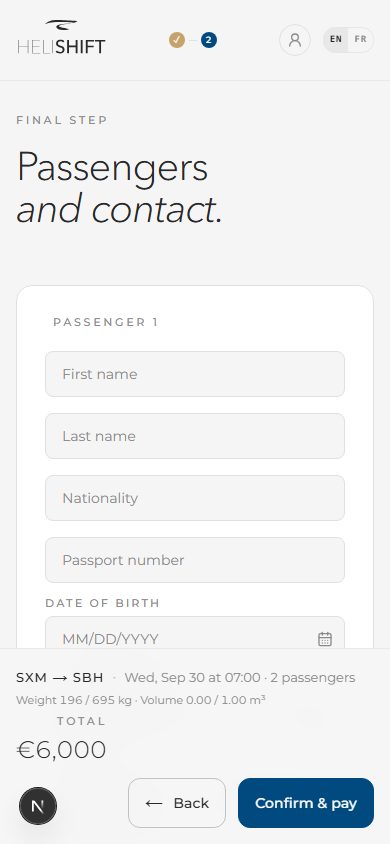
In the "Passengers" block, use the "Add a passenger" and "Remove a passenger" buttons, then "Confirm". You can travel with up to five passengers.
The aircraft is chartered in full: the price shown is for the whole aircraft, never a per-person fare. Flying with two or with five does not change the amount.
How does a round trip work?
Choose "Round trip" on the very first screen. You then pick two slots: one under "Outbound / time" and one under "Return / time". Both are required before you can continue. If "Return route not available for this pair." appears, the route runs one way only.
I am arriving or leaving by plane, how do I flag my connection?
On the times screen, the "Connecting flight" block asks "Do you have a connecting flight at departure or arrival?". Answer "Yes", then fill in "Flight number" (on a round trip the fields become "Flight number (outbound connection)" and "Flight number (return connection)"). We look the flight up and show its real time under the field.
If the connection is too tight, a message invites you to pick a later slot (or an earlier one for a plane you need to catch afterwards). The number helps us organise your welcome and is not a guaranteed tracking service.
How do I add baggage, and what if the gauge is exceeded?
At the "Finalise" step, the "Baggage" section offers a counter for each category. Two gauges, "Weight" and "Volume", fill up as you go. If a case falls outside the formats offered, click "Add custom baggage" and enter its weight, its volume and a short description.
If the "Capacity exceeded" message appears, you have two options: remove baggage, or click "Arrange transport for your baggage". You then choose, for whichever leg you like, a "Dedicated baggage flight" or the "Sea shuttle". The weight handed over is deducted automatically from your flight's gauge and appears on the same invoice.
I cannot find my destination, how do I request a bespoke quote?
If the "Another destination…" tile is offered in the arrivals list, click it, then click "Request a bespoke quote". Give the destination you have in mind, the date, a time window, the number of passengers and your contact details, then "Send request". Our team sends you a proposal by email, which you also find under "My flights" if you are signed in.
What happens if the slot I picked has just been taken?
Availability updates in real time, but another client can book the same time while you are completing your details. The message "This slot was just booked. Pick another one." then appears, together with the "Choose another slot" button. Your passenger information is kept: only the time needs redoing.
Can I switch language mid-booking?
The two "fr" and "en" buttons at the top of the screen switch the interface. Once you have moved past the first screen, the "Change language?" window warns you: "Changing language restarts the booking: anything you have entered will be lost." Choose "Cancel" to stay where you are, or "Change and restart" to begin again from the first screen in the other language.
2. Paying for my booking
When am I charged?
Nothing is taken while you fill in your booking. The finalise screen says so: "Nothing is charged yet. Payment happens in a secure window, once you confirm your booking."
- Tick the "I accept the terms and conditions of sale" box.
- Click "Confirm & pay".
- The "One moment…" card appears while the secure payment is prepared.
- Pay in the payment window that opens.
- The "Validating your payment…" card confirms your booking, then the "Booking confirmed" screen appears.
I have a promo code, where do I enter it?
At the "Finalise" step, under the price summary, expand "Have a promo code?". Enter the code, then click "Apply". The discount appears under the "Applied:" line and the total is recalculated. If you read "This code is invalid or expired.", check what you typed. "Hide promo code" closes the field again.
How long is my slot held?
Your slot is set aside for the time shown on screen, under "Payment". After that, the slot is released and you will need to pick another one.
Can I pay with Apple Pay or Google Pay?
Yes, if your browser or your phone offers it. The "Choose how you'd like to pay" screen then appears, with the wallet button and the "Pay by card" option.
My card was declined, what do I do?
The message "Payment was declined. Try another card." means your bank refused. Start the payment again with another method. If you read "Payments are temporarily suspended. Please try again a little later or contact us.", the payment service is briefly unavailable: your booking is not lost, so try again a little later.
The payment window expired while I was paying.
If the slot is released before payment completes, the screen tells you so and states what happens to your money: "The payment window expired: the slot was released and your booking was not confirmed. If any amount was charged, it will be refunded in full. Choose a new slot to book." If the payment had already gone through, the variant shown announces an automatic refund in full. Either way, the "Choose another slot" button takes you back to the list of times.
I paid but have no confirmation, should I worry?
Wait a few minutes and check your inbox: the summary is sent by email as soon as the booking is confirmed. Your flights also appear under "My flights". If an amount looks charged without the booking showing up, write to us at contact@helishift.com with your email address and the time you picked: we will check the file.
What is on the confirmation screen?
The "Your transfer is confirmed" page recaps your flight: "Booking ref", "Scheduled takeoff", estimated arrival, "Route", "Passengers" and "Total". A note reminds you that the flight is operated by France Copter and that times may still be adjusted for weather or operational reasons. On a round trip the "Outbound" and "Return" sections follow one another, with the "Round-trip total" and the "View confirmation" link to the other leg.
The "Rendezvous" block gives the time to be there, the exact place and the departure instructions, then the arrival instructions under "On arrival". The "Add to calendar (.ics)" button saves the flight to your diary. At the bottom, a line reminds you that a sign-in link has been sent to your email address: it opens your booking from any device.
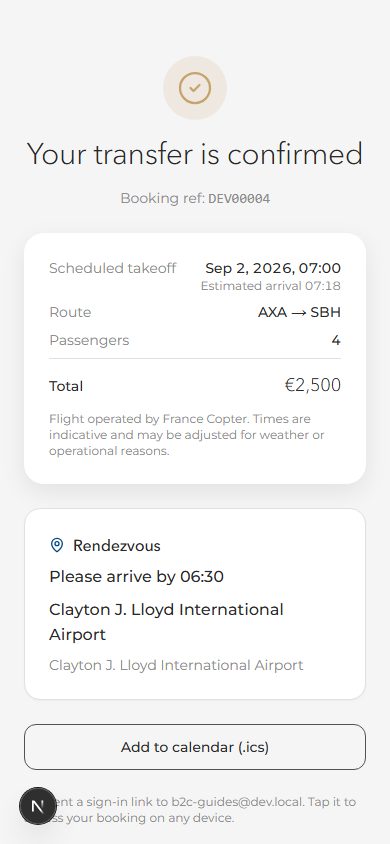
Banners are added depending on the state of your file: "Payment in progress." while it is being processed, "Your slot stays reserved for another …" as long as payment is not finalised, or the change-awaiting-payment notice, which states that your original flight stays booked and that the new date applies once payment is confirmed.
3. Creating my account and signing in
How do I sign in?
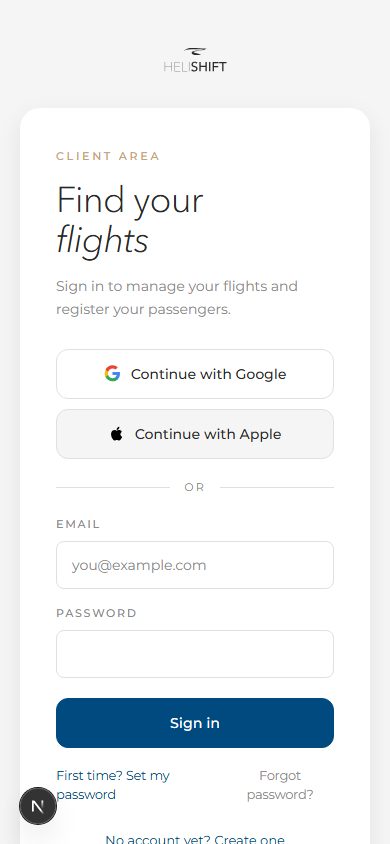
Open your client area. Until you are signed in, the "Find your flights" card is shown. There are three ways in:
- "Continue with Google"
- "Continue with Apple"
- Your "Email" and "Password" fields, then "Sign in"
How do I create an account?
At the bottom of the card, click "No account yet? Create one". Fill in "First name", "Email" and "Password" (6 characters minimum), then click "Create my account". Google and Apple work for sign-up too.
I have already booked a flight but have no password, how do I get in?
This is the most common case: an account was created automatically with the email address from your booking. Click "First time? Set my password", enter that address, then follow the link you receive. The "Email sent" message confirms it has gone out.
If you try to sign up and read "An account already exists for this email. Set your password to access it.", follow the same steps.
I forgot my password.
Click "Forgot password?" under the form, enter your email address and follow the reset link you receive.
The link I received by email no longer works.
These links are single use and they expire. If you open an expired one, the page shows "Link expired or invalid" and "This link is no longer valid. Enter your email to get a new one.". Enter your address, click "Get a new link", then use the link in the new email. Once the password is set, you are signed in and taken back to your booking.
4. Finding my flights and my invoices
Where do I see my upcoming and past flights?
Sign in to your client area. The "My flights" tab opens by default, with two sections: "Upcoming" and "Past". Each card shows the route, the date, the time, the status and the number of passengers registered.
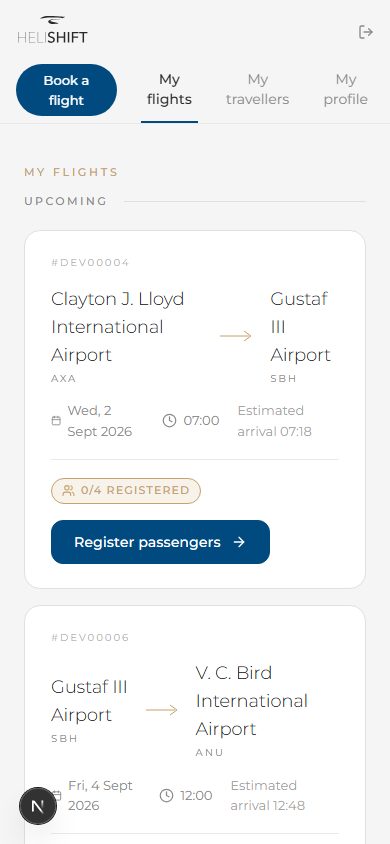
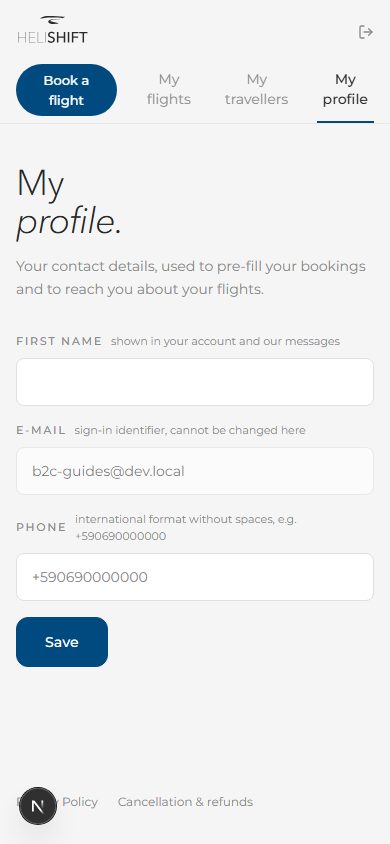
The navigation offers three tabs: "My flights", "My travellers" and "My profile", plus the "Book a flight" button.
How do I download my invoice?
On the card for the flight concerned, click "Invoice". The document opens as a PDF. The button only appears once the invoice has been issued.
What do the badges mean?
- "Confirmed": your flight is booked and paid for.
- "Completed": the flight has taken place.
- "To complete" or "Complete": tells you whether the passenger details are filled in.
- "Refund in progress" or "Refunded": following a cancellation.
- "Date change offered": we have proposed a new time to you.
- A bespoke quote carries its own status: "Under review", "Quote ready", "Booked" or "Expired".
5. My travellers book
How do I add a traveller to my book?
- Open the "My travellers" tab.
- Click "Add a traveller", then "Enter manually".
- Fill in the last name, first name, date of birth, nationality, passport number and expiry date. Weight stays optional.
- Tick "I agree to store this information in my book."
- Click "Save traveller".
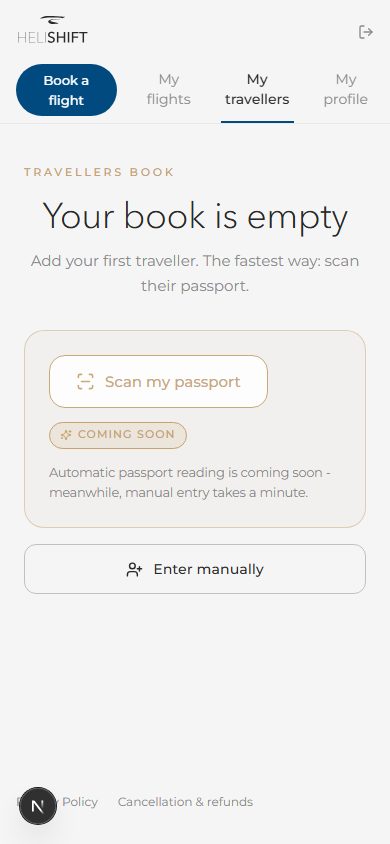
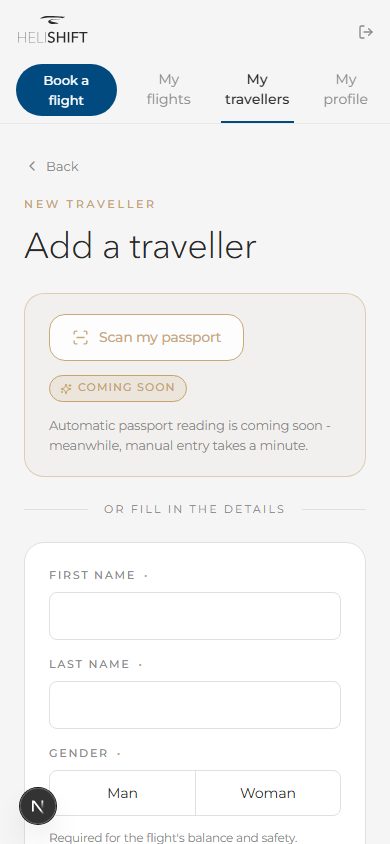
Is passport scanning available in the book?
Not yet. On this page the "Scan my passport" button carries the "Coming soon" badge and is not active. Only manual entry works here. Scanning is available, however, when you register the passengers of a flight you have already booked (see section 6).
How do I reuse a traveller from the book when booking?
At the "Finalise" step of your booking, the "From your book" block lists your saved travellers. One tap adds the person and fills in all their fields. You can also tick "Save this traveller to my book" for a passenger entered on the fly.
A passenger taken from the book carries the "Added from your book" note. If you correct one of their details, the "Edited for this flight only - Update this profile in your book?" box leaves the choice to you: "Keep for this flight" writes nothing to the book, "Update" saves the correction for your next bookings.
How do I edit or delete a traveller?
Every card offers "Edit" and "Delete". Deletion is permanent: the passport details and the date of birth are erased from your book. Bookings you have already made with that person are not affected.
6. Registering the passengers on a flight
How do I register the passengers on my flight?
- Under "My flights", click "Register passengers" on the card for the flight concerned.
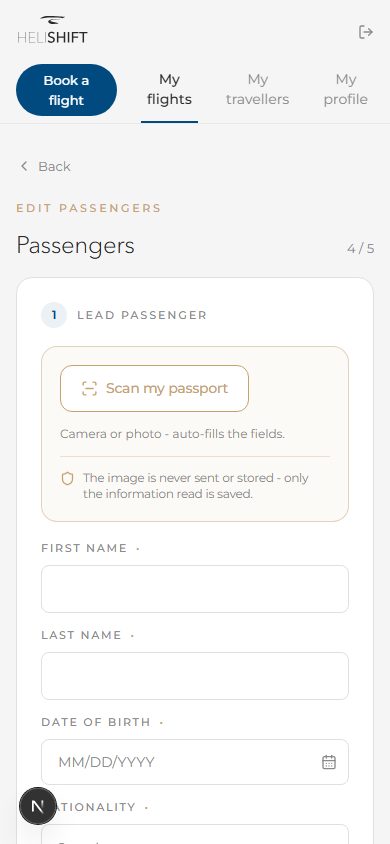
- Complete each passenger's details: last name, date of birth, nationality, gender (required for the flight's balance and safety), passport number and expiry date. Weight stays optional.
- Click "Save changes".
The "Passengers registered." screen confirms the operation. You can then use "Back to my flights" or "Edit".
How do I scan a passport?
Click "Scan my passport" and photograph the two-line strip at the bottom of the identity page, lying nice and flat. The "Reading…" then "Passport read" message confirms the read, and the fields fill in on their own.
If you read "Photo unreadable. Try again with the 2-line strip at the bottom lying flat, or enter the details manually.", reframe the photo or click "or enter manually".
What if a passport is expired or about to be?
The "Expiry date" field warns you by itself. If the date has passed, it shows "Passport expired". If it falls within six months, "Expires soon" appears under the field. Check the document before departure and enter the date on the passport the passenger will actually present.
How long can I keep editing the passengers?
Up to 48 hours before take-off (the Helishift team can change that delay). The exact deadline is shown under the passenger list, on the "Passengers editable until" line. After that, the "Registration closed" banner appears and the save button is disabled: contact us for any change.
Is my passport data kept?
The image of your passport is neither sent nor stored: only the information read is saved, as the screen states. Manifest data is used for your flight and for the operator's obligations.
7. Changing or cancelling a flight
Open your flight card from "My flights", then click "View details". Three actions are offered as long as the deadline has not passed: "Edit passengers", "Change the date" and "Cancel the flight".
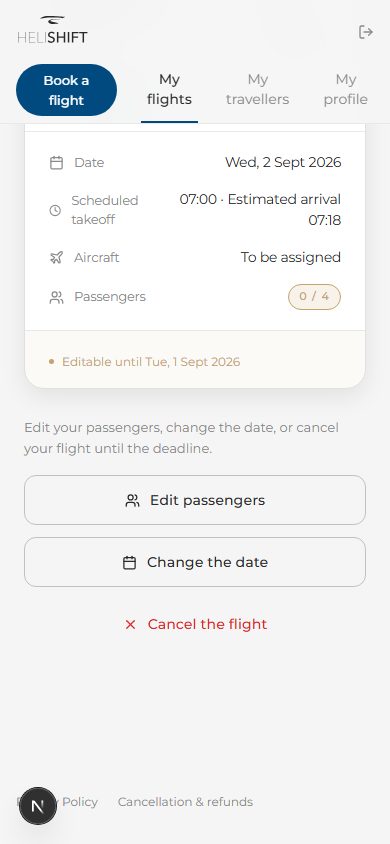
How do I change the date of my flight?
- Click "Change the date".
- Pick a new slot on the same route.
- Confirm according to the message shown.
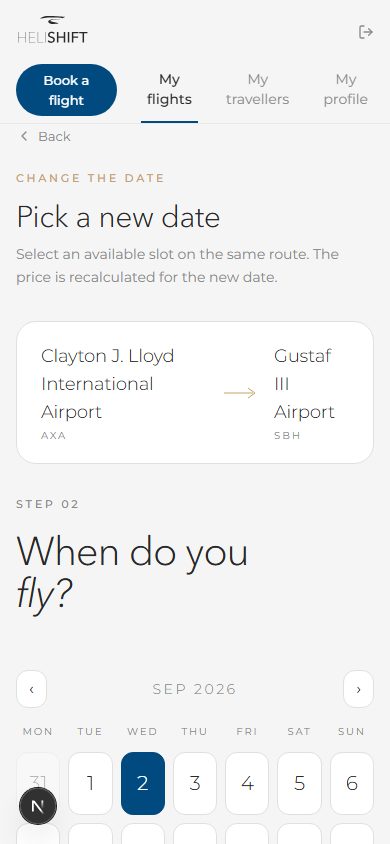
Will I pay extra or be refunded if I change the date?
The price is recalculated for the new date and the screen tells you plainly what that means:
- "Confirm the new date" if the price is unchanged.
- "Pay the difference" if the new date costs more. You are redirected to secure payment and the new date is confirmed only once it is paid.
- "Confirm the … refund" if the new date is cheaper. The difference is refunded to you.
In every case, the "Your flight has been moved." message and an email with your new itinerary confirm the operation.
My date change did not go through.
Two messages can appear when you confirm. "That time is no longer available. Please pick another." means another client took the time between your selection and your confirmation: go back to the list and pick another one. "Payments are temporarily suspended. Please try again a little later." flags a brief unavailability of the payment service. Either way your original flight stays booked: nothing is lost.
How do I cancel my flight?
Click "Cancel the flight". The "Cancel this flight?" window shows a "Refund preview" before anything is confirmed. Confirm with "Confirm cancellation", or step back with "Keep my flight".
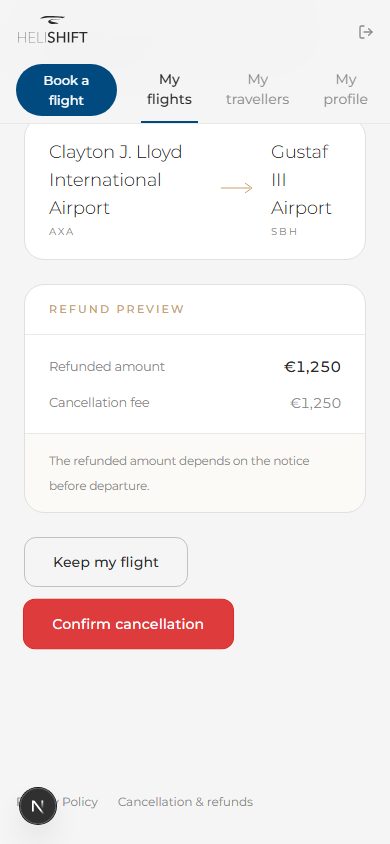
What are the refund conditions?
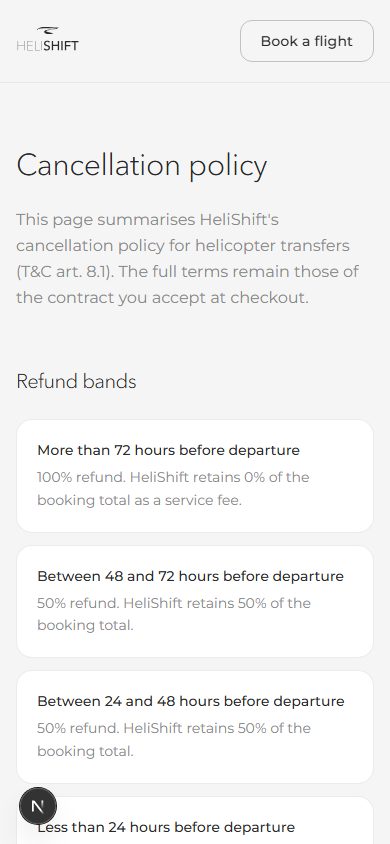
The amount refunded depends on how much notice there is between your request and departure. The applicable conditions are set out on the HeliShift "Cancellation policy" page, reachable from the "See the cancellation conditions" link in the app. Always refer to that page, which is the reference.
My flight was cancelled because of the weather, what happens?
If conditions do not allow a safe flight, we cancel it and you receive an email with a dedicated link. Your seats are held and rebooking happens at no extra charge. From that page, use "Email us" or "Call us": we confirm a new departure with you.
My flight was cancelled for another reason, what happens?
It can happen that a flight already paid for cannot be operated. You are informed, and your booking page shows "This booking was cancelled. Refund processed." Nothing is required from you. The follow-up also appears under "My flights" on the card for the flight concerned. To travel on another date, contact us or start a new booking.
8. Need help?
How do I reach HeliShift?
- By phone: +33 6 19 99 16 87
- By email: contact@helishift.com
- From the booking flow: open "My profile" at the top of the screen, then "Contact us". The page opens in a new tab and your booking in progress is not lost.
How do I update my contact details?
Open the "My profile" tab. You can change your "First name" and your "Phone" (international format, for example +590690000000), then click "Save". Your "E-mail" is your sign-in identifier and cannot be changed here.
How do I manage cookies and find the legal documents?
On your first visit, the "Cookies and privacy" banner offers "Accept all", "Refuse all" or "Customise". The detail separates "Audience measurement" (anonymous visit statistics) from "Marketing" (advertising campaign measurement); "Save my choices" records your selection.
The "Manage cookies" link at the bottom of the screens reopens that choice at any time. The same footer leads to "Privacy policy" and to "Cancellation & refunds". The "Terms and conditions of sale" open from the checkbox on the finalise step and from the foot of the legal pages.
How do I delete my account?
At the bottom of the "My flights" tab, in the danger zone, click "Delete my account". Enter your exact email address to confirm, then click "Delete permanently". Your account, your personal data and your travellers book are deleted irreversibly. Your past bookings are kept in anonymised form to meet our accounting and legal obligations.